Fix Wrong Hours on Your Dental Google Listing

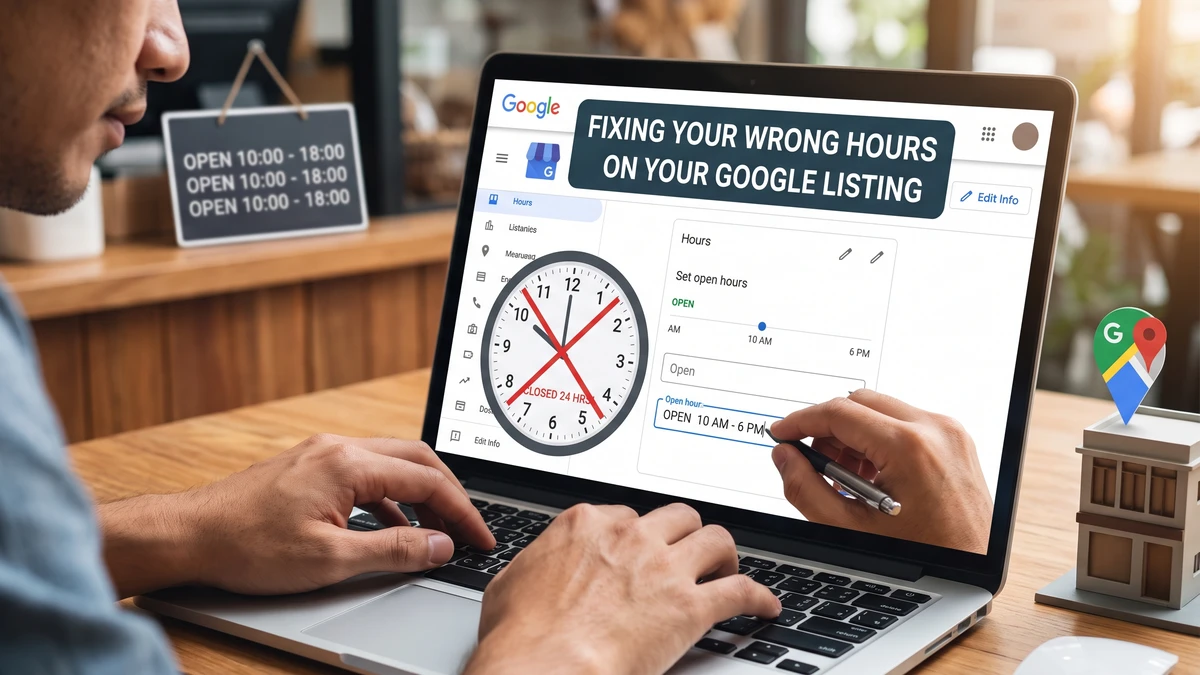
A new patient looks you up on their phone. Google says you close at 4. You actually close at 6. So they call the office down the street instead, because they think they’ve missed you. That patient is gone, and you never even knew they existed.
Wrong hours on your Google listing quietly cost you patients every single week. The good news? Fixing them takes about ten minutes, and you can do it yourself right now. No agency, no tech skills, no waiting.
This guide walks you through it step by step, plus how to stop the wrong hours from creeping back in.
Why Do Wrong Hours on Google Matter So Much for a Dental Practice?
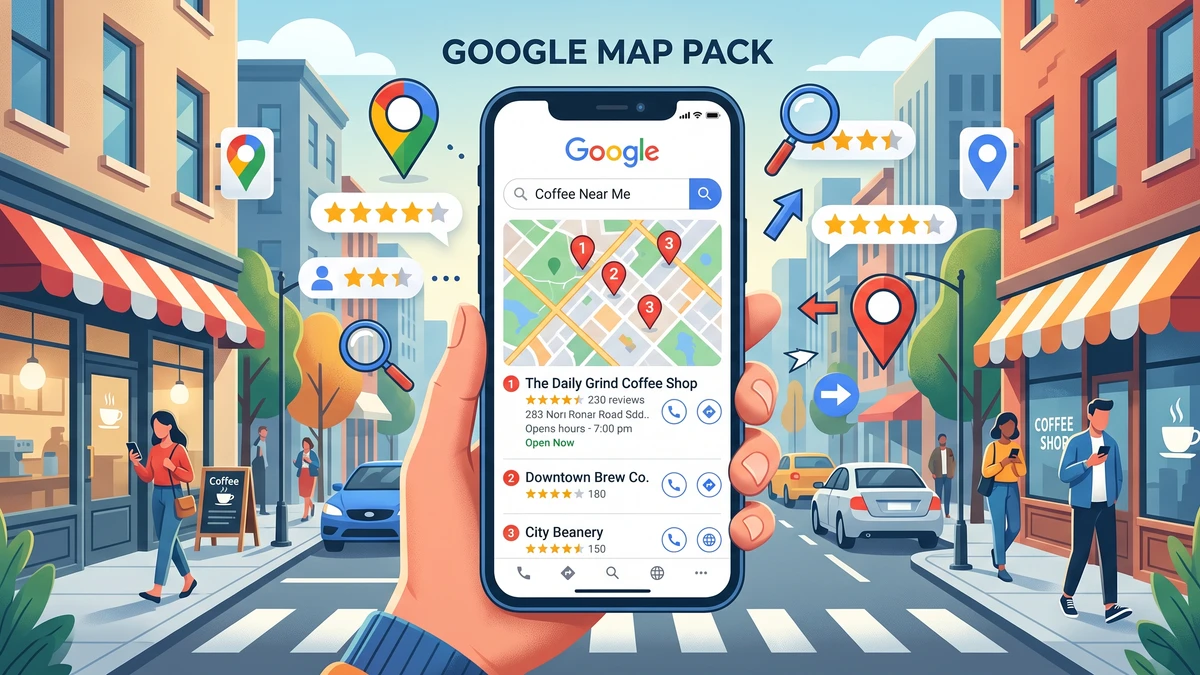
Wrong hours matter because Google is often the first thing a patient sees, and it decides whether they call you or move on. Most people never visit your website first. They Google your name or “dentist near me,” glance at the little box that pops up, and act on what it says.
That box is your Google Business Profile. It’s the free listing that shows your practice in Google Maps and in search results. Your name, phone number, reviews, and hours all live there.
Here’s the part that stings. When your hours are wrong, patients don’t blame Google. They blame you. If someone drives over on a Saturday because Google said you were open, and your door is locked, that’s a frustrated person who may leave a bad review. And if you’re listed as closed when you’re actually open, you lose the call entirely.
A few common ways wrong hours creep in:
- You changed your schedule but never updated Google
- A holiday came and went with no special hours set
- Someone claimed or edited your listing years ago and moved on
- Google itself “suggested” an edit and it stuck
Any of these can quietly send patients away. Let’s fix it.
How Do You Find and Access Your Google Business Profile?
To update your hours, you first need access to your Google Business Profile. The fastest way is to sign in to the Google account that manages your listing and search your practice name directly.
Follow these steps:
- Open a browser and go to google.com. Make sure you’re signed in to the Google account tied to your practice. This is often the email you or your office manager used to set the listing up.
- In the search bar, type your practice name. Something like “Bright Smile Dental Springfield.”
- If you manage the listing, you’ll see a panel on the right or a menu at the top with options like Edit profile, Messages, and Reviews. That’s your dashboard.
- Don’t see those options? Go to business.google.com and sign in. Your listing should appear there.
If nothing shows up under any account you try, the profile may be managed under an email nobody remembers, or it was never claimed. We’ll cover that situation a bit further down. For now, assume you can find it.
What Are the Exact Steps to Update Wrong Hours?
Once you’re in your profile, updating your regular hours takes about two minutes. Here’s the step-by-step.
- From your profile dashboard, click Edit profile. On some accounts it says Info or shows a pencil icon.
- Find the Hours section. You’ll see each day of the week listed with open and close times.
- Click the pencil or the times next to the day you want to change.
- Adjust the open and close times. If you’re closed on a day, toggle it to Closed. If you’re open, make sure both the open and close times are correct.
- Double-check every day, not just the wrong one. It’s common to find two or three days that are off once you start looking.
- Click Save. Some changes go live in minutes. Others take up to a day if Google reviews the edit.
One thing to watch. If your practice closes for lunch, Google lets you add split hours. Instead of 8 a.m. to 5 p.m., you can set 8 a.m. to noon and 1 p.m. to 5 p.m. This tells patients exactly when someone will actually answer. Speaking of which, if calls are slipping through during your lunch break, here’s how to stop losing dental patients to lunch voicemail.
How Do You Set Special Holiday Hours So You’re Not Doing This Every Year?
Holiday hours are separate from your regular hours, and setting them ahead of time saves you from angry patients showing up on Thanksgiving. Google has a special section just for these dates.
Here’s how to set them:
- In the Hours section of your profile, look for Special hours or Holiday hours.
- Google usually lists upcoming holidays automatically. Click the one you want to set.
- Mark yourself as Closed for that day, or enter the shortened hours if you’re open part of the day.
- Add any dates Google didn’t list, like a team retreat or the week you close between Christmas and New Year’s.
- Save.
Do this once at the start of the year for every closure you already know about. Block out the major holidays, staff training days, and any planned vacations. When those days arrive, Google shows patients the right thing without you touching a thing.
Why this matters more than regular hours: on a holiday, Google will actually put a red “Holiday hours may differ” or “Temporarily closed” note on your listing if you haven’t set anything. That warning makes patients hesitate to call at all.
What If You Can’t Log In or Someone Else Owns the Listing?
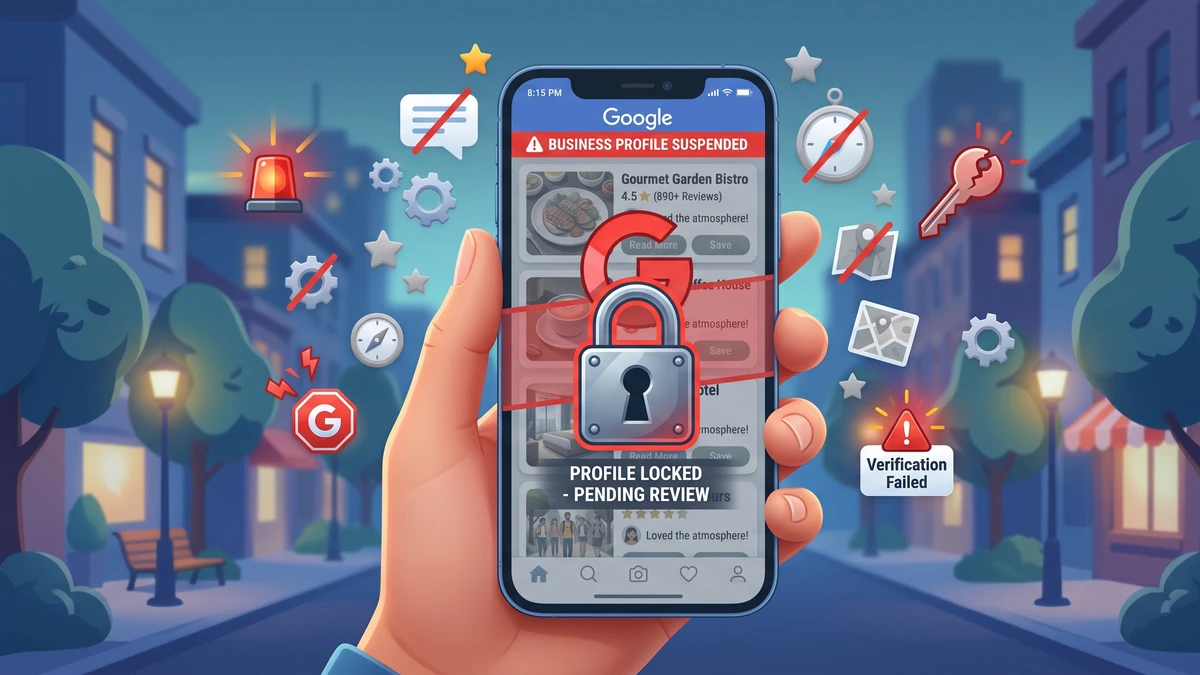
If you can’t access your listing, it’s usually because it was claimed under an old email or never claimed by anyone. You can request access or claim it yourself, but it takes a little patience.
Try these in order:
- Search your practice on Google. If you see a link that says Own this business? or Claim this business, click it and follow the prompts. You’ll verify you’re the real owner, usually by phone, postcard, or video.
- Request access. If the listing is already claimed by someone else, Google shows a message saying so and gives you a Request access button. Fill it out. The current owner gets an email and has a few days to respond.
- Wait for the response window. If they don’t reply, Google may grant you access after about a week. This is common when a former marketing company or ex-employee owns the profile.
Verification can feel slow, especially the postcard method where Google mails a code to your office. Do it anyway. Owning your listing is worth the hassle. Once you’re verified, you control the hours, the photos, and how you respond to reviews for good.
Keep a note somewhere safe with the email and login that manages the profile. The number one reason practices get locked out is that the only person who knew the password left.
How Long Does It Take for Updated Hours to Show Up?
Most hour changes appear within a few minutes to a few hours. Some edits, especially on newer or recently claimed listings, get reviewed by Google and can take up to three days to go live.
A few tips while you wait:
- Check on a different device. Search your practice on your phone using a private or incognito window. This shows you what a patient actually sees, not your cached version.
- Don’t keep re-saving. Editing the same field over and over can slow the review down. Save once and give it time.
- Watch for a “pending” label. If Google is reviewing your edit, it may show as pending in your dashboard. That’s normal.
If your hours still show wrong after three days, move on to the next section. Something may be overriding your edit.
Why Do Wrong Hours Keep Coming Back After You Fix Them?
Sometimes you fix your hours and they change back on their own. This usually happens because Google accepted a “suggested edit” from the public, or because your hours are listed differently on another website that Google trusts.
Here’s what to check:
- Suggested edits. Anyone can suggest a change to your listing, including patients and random users. Google sometimes applies these automatically. Log in regularly and confirm your hours are still right.
- Other listings. Google pulls information from places like Yelp, your Facebook page, and old directory sites. If those show 9 to 4 and you’re actually 8 to 6, Google may get confused. Update those too.
- Duplicate profiles. Some practices have two Google listings by accident, often after a move or a name change. Patients might land on the old one. Report duplicates to Google so they get merged.
The fix is a habit, not a one-time task. Once a month, pull up your listing and glance at the hours. It takes thirty seconds. Make it part of the same routine where you check your reviews.
How Do You Keep Your Google Listing Accurate Without Thinking About It?
The easiest way to keep your hours accurate is to assign one person to own the listing and add a quick check to a schedule you already follow. Consistency beats effort here.
A simple system that works:
- Pick one owner. Usually the office manager. One person, one login, no confusion.
- Set holiday hours in January. Block out every known closure for the year in one sitting.
- Do a monthly 30-second check. On the first Monday of each month, search your practice on a phone and confirm the hours.
- Update everywhere when hours change for real. Change your schedule? Update Google, Facebook, Yelp, and your website the same day.
While you’re making sure patients can find you, it’s worth checking that you’re not dropping the calls they make. Wrong hours are just one leak. Here’s how to stop losing new patient calls at your dental office, and if you want to see how many calls your listing actually drives, this guide on simple call tracking setup for dental offices shows you how.
Accurate hours won’t win you an award. But they’ll quietly stop the slow leak of patients who assumed you were closed and called someone else. Ten minutes today, thirty seconds a month after that. That’s the whole job.
Frequently Asked Questions
Can a patient change my dental practice’s hours on Google?
Yes. Anyone can suggest an edit to your listing, and Google sometimes applies those changes automatically. That’s why you should log in and confirm your hours once a month, even if you haven’t touched anything.
How do I add lunch hours so patients know when we actually answer?
Use split hours. In the Hours section, set two time blocks for the same day, like 8 a.m. to noon and 1 p.m. to 5 p.m. This shows patients your lunch closure instead of listing you as open straight through.
What if the person who set up our Google listing no longer works here?
Search your practice on Google and look for a “Request access” or “Claim this business” option. Google will email the current owner, and if they don’t respond within about a week, you can gain access. Then update the login and share it with a backup person.
Why do my updated hours still show wrong after I saved them?
Google reviews some edits before publishing, which can take up to three days. If it’s still wrong after that, check for a duplicate listing or conflicting hours on Yelp, Facebook, or old directory sites that Google may be pulling from.
Do I need to set holiday hours every single year?
Yes, but you can knock out the whole year in one January sitting. Set special hours for every known closure at once. Google then displays them automatically on those dates without any further work from you.
Get the Free Google Listing Checklist for Dental Practices
Want to make sure your hours, phone number, and photos are all pulling their weight? Grab our free one-page Google Business Profile checklist built just for dental offices. It walks you through every setting that helps new patients find and call you, in plain English.