Fix Duplicate Google Listings for Your Dental Office

Ever searched your own dental practice on Google and seen it show up twice? Two pins on the map. Two different phone numbers. Maybe one has your reviews and the other has none. That’s a duplicate listing, and it quietly costs you new patients every week.
Here’s the good news. You can find these duplicates yourself, and you can get them cleaned up without hiring anyone. This guide walks you through it step by step, in plain language, no marketing degree required.
Let’s clear up the confusion first, then fix it.
What Is a Duplicate Google Listing, and Why Does It Hurt Your Practice?
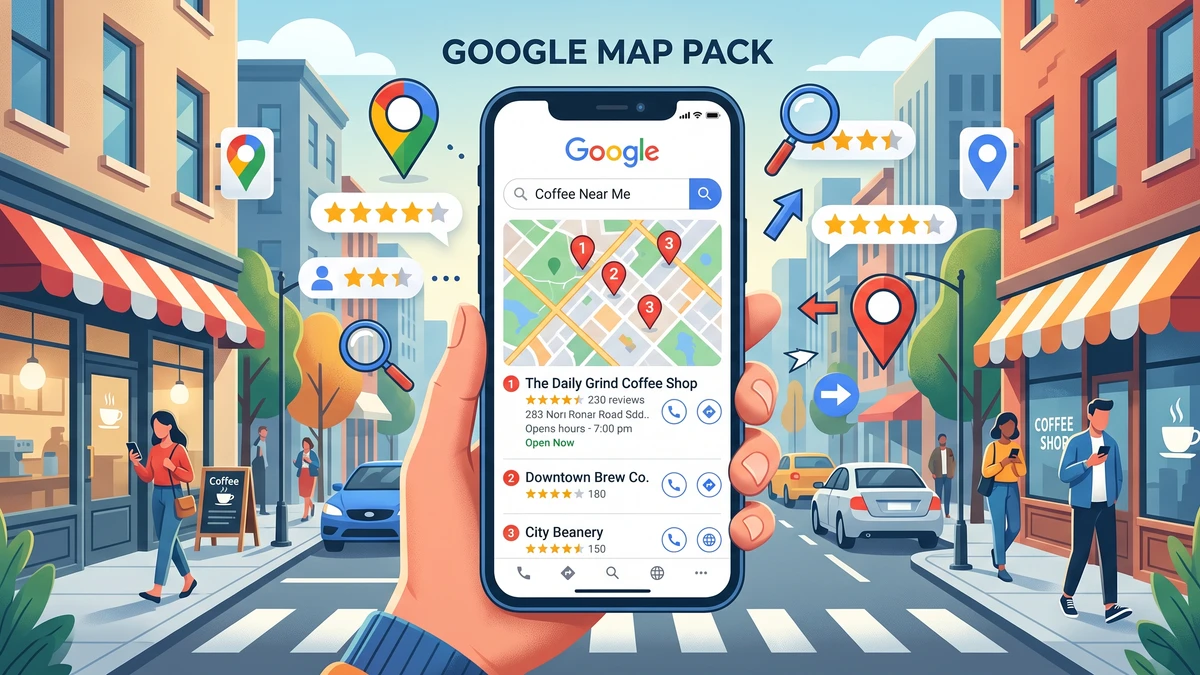
A duplicate Google listing is when your dental office shows up more than once on Google Maps and in search results. Same practice, but two (or more) separate listings competing against each other.
This matters because Google gets confused when it sees two versions of you. It doesn’t know which one to trust or show. So it might show the wrong one. The wrong one usually has an old phone number, an outdated address, or zero reviews.
Think about what that does to a new patient. They find the empty-looking listing, call a disconnected number, and give up. Or they leave a review on the listing you never check. Meanwhile the version you actually manage sits there, missing traffic it earned.
Duplicates hurt you in three specific ways:
- They split your reviews across two listings, so neither looks as strong as it should.
- They send patients to old or wrong info, which means missed calls and missed appointments.
- They weaken how high you rank in Google Maps, because your credibility is divided in two.
Your Google Business Profile (the free listing that shows you in Google Maps and the local results) is often the very first thing a new patient sees. When there are two of them, you’re fighting yourself.
How Do Duplicate Listings Even Happen?
Most duplicates aren’t your fault, and you almost never created them on purpose. They pile up over time from a handful of common situations.
Here are the usual culprits:
- You moved offices. The old address stuck around as its own listing while a new one got created.
- A new dentist or associate joined. Someone made a fresh listing instead of updating yours.
- Google auto-generated one. Google sometimes builds listings on its own from data it pulls off directories and old websites.
- A marketing company or old employee set one up years ago and nobody has the login anymore.
- Your practice name changed (say, from a solo name to a group brand) and both versions live on.
A really common one for dental offices: the practice name shows differently in different places. “Smith Family Dental” on one listing and “Dr. John Smith DDS” on another. Google can read those as two separate businesses.
None of this means you did anything wrong. It just means it’s time for a cleanup.
How Do You Find Duplicate Google Listings for Your Dental Office?
To find duplicates, you search Google the way a patient would and look for more than one version of your practice on the map. It takes about 20 minutes, and you can do it right now.
Follow these steps in order:
- Search your exact practice name in Google. Type it in and look at both the map results and the regular results below. Do you see your name more than once?
- Search by service and city. Try “dentist near [your town]” or “dental office [your zip code].” Scroll the map results and look for any pin that’s actually you but looks off.
- Search your address. Type your street address straight into Google Maps. If two listings pop up at the same spot, that’s a duplicate.
- Search old phone numbers. If you’ve ever changed your number, search the old one. An outdated listing may still be carrying it.
- Search former names and former dentists. If a retired partner or an old practice name is out there, search those too.
As you go, keep a simple list. Write down every listing you find, its address, its phone number, and how many reviews it has. You’ll need this in the next step. A sticky note or a quick note on your phone works fine.
One more useful check. Open Google Maps and zoom into your building. Sometimes a duplicate pin sits a few doors down or even inside a neighboring suite. Look closely.
A Quick Way to Spot the “Real” One
Your primary listing is usually the one with the most reviews, the correct current phone number, and a “Verified” badge when you’re logged into your Google account. That’s the one you want to keep. The others are the ones you’ll merge or remove.
How Do You Fix or Remove a Duplicate Listing?
Once you’ve found the duplicates, you fix them by either merging them into your real listing or asking Google to mark them as duplicates so they get removed. The exact path depends on whether you can access the listing.
Start by logging into the Google account that manages your main listing. If you’re not sure you have access, go to business.google.com and see what shows up. Now handle each duplicate based on its situation.
If You Can Access the Duplicate
This is the easy case. You control both listings.
- Go to your Google Business Profile dashboard.
- Find the duplicate listing in your list of businesses.
- Look for the option to report it as a duplicate or to remove it. Google will usually detect that it matches your main listing and offer to merge them.
- Confirm that the main listing keeps the correct name, address, phone, and hours.
When two verified listings sit at the same address with the same info, Google often merges the reviews automatically. That’s exactly what you want.
If You Can’t Access the Duplicate
This happens a lot with auto-generated listings or ones an old vendor made. You’ll need to report it.
- Open the duplicate listing on Google Maps.
- Click “Suggest an edit” or “Own this business?”
- Choose the option that says the place is a duplicate, permanently closed, or doesn’t exist as a separate business.
- Submit it. Google reviews these by hand, so it can take a few days to a few weeks.
If Google won’t cooperate through the edit tool, use the Google Business Profile Help community or the support chat inside your dashboard. Be ready to prove the two listings are the same business. Screenshots of both, plus your correct info, speed things up.
A Word of Caution Before You Delete Anything
Never delete a listing that has your reviews on it, even if it has the wrong address. Fix the info instead, or ask Google to merge it into your primary one. Deleting a listing can wipe out reviews for good, and those are hard-earned. Merge first. Delete only as a last resort, and only for empty listings.
What Should You Do After the Duplicates Are Cleaned Up?
After cleanup, tighten up your one true listing so it’s accurate everywhere and stays that way. A duplicate-free profile only helps if the surviving one is complete and correct.
Go through this checklist on your main listing:
- Name matches your signage and website exactly.
- Address is current, including suite number.
- Phone number is the one you actually answer. If you track calls, make sure it points to the right place. (More on that below.)
- Hours are right, including lunch closures and holidays.
- Website link works and goes to your homepage.
- Categories list “Dentist” as primary, plus specifics like “Cosmetic dentist” or “Pediatric dentist” if they apply.
- Photos show your real office, team, and front door.
Consistency across the web is what keeps duplicates from coming back. Google trusts you more when your name, address, and phone number match everywhere they appear online. That includes your website, your Yelp page, Healthgrades, and your insurance directory listings. Pick one exact format and use it every single time.
Speaking of phone numbers, this is a good moment to make sure you’re actually capturing the calls your clean listing brings in. If you’ve ever wondered how many callers hang up or reach a voicemail, our guide on how to stop losing new patient calls at your dental office walks through the fixes. And if you want to know which listings and ads drive your calls, a simple call tracking setup tells you exactly where new patients are coming from.
Can a Tool Help You Manage This So It Doesn’t Happen Again?
Yes. If keeping your info consistent across dozens of sites sounds like a headache, a listings management tool does it for you and flags new duplicates before they spread.
These tools push your correct name, address, and phone out to Google, Yelp, Bing, Apple Maps, and the health directories all at once. They also scan regularly for duplicates and alert you. For a busy front office, that’s hours saved.
A well-known option is Yext, which syncs your business info across a huge network of sites and watches for duplicate or wrong listings. It’s a paid service, so it makes the most sense once you’ve done the initial cleanup and want to keep things clean without checking manually.
You don’t need a tool to fix your current duplicates. The steps above handle that for free. A tool just keeps the problem from creeping back as directories update on their own.
How Often Should You Check for Duplicate Listings?
Check for duplicates at least twice a year, and any time something big changes at your practice. New listings can appear on their own, so this isn’t a one-and-done job.
Put a recurring reminder on the calendar. Twenty minutes every six months beats losing patients to a stray listing you didn’t know existed.
Always do an extra check right after these events:
- You move to a new office.
- You change your phone number.
- A new dentist joins or a partner leaves.
- You rebrand or change your practice name.
- You launch a new website.
Each of those is a moment when Google’s data can drift and a duplicate can sneak in. Catch it early and the fix is quick.
Frequently Asked Questions
Will fixing a duplicate listing delete my Google reviews?
Not if you merge instead of delete. When Google merges two listings for the same business, it usually combines the reviews. Deleting a listing outright can lose the reviews on it, so never delete one that has reviews. Merge it into your main listing instead.
How long does Google take to remove a duplicate?
It varies. If you control both listings, a merge can happen within days. If you’re reporting a duplicate you can’t access, Google reviews it by hand, so expect a few days to a few weeks. Following up through Google Business Profile support can speed things along.
What if I don’t have the login for the duplicate listing?
You can still fix it. Open the listing on Google Maps and use “Suggest an edit” to mark it as a duplicate or closed. If that doesn’t work, contact Google Business Profile support with screenshots showing both listings are the same practice.
Why does my practice show up twice with different phone numbers?
Usually one listing has an old number from before a change or from a marketing vendor. Search your old phone number to find that listing, then correct the info or merge it into your main profile. Then double-check the surviving listing has the number you actually answer.
Do I really need a paid tool to manage my listings?
No. You can find and fix duplicates for free using the steps in this guide. A paid tool just automates the ongoing upkeep across many directories and warns you when new duplicates appear. It’s helpful for larger or multi-location practices, but optional for most single offices.
Get the Free Dental Google Listing Cleanup Checklist
Want the exact steps in a printable format you can hand to your front desk? Grab our free checklist to find duplicates, fix your Google profile, and keep your listing clean all year. Simple, no jargon, ready to use today.