Apple Maps for Dentists: Claim Your Listing Fast

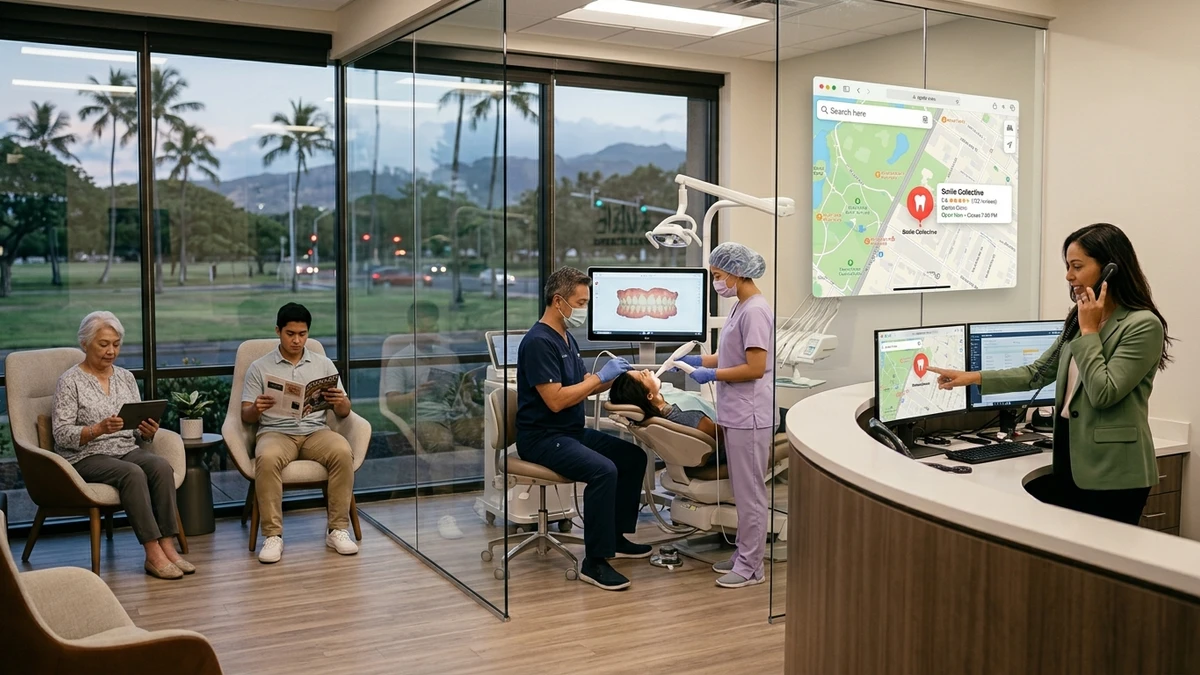
Short answer: yes, your dental practice should be on Apple Maps. And you probably haven’t thought about it once, which is exactly why it’s worth ten minutes today.
Here’s the thing. Everybody obsesses over Google. That makes sense. But every iPhone in the country ships with Apple Maps built in, set as the default. When someone with an iPhone asks Siri to “find a dentist near me,” the results come from Apple Maps. Not Google. Apple.
So if your listing is wrong, incomplete, or doesn’t exist, you’re invisible to a big chunk of the people looking for exactly what you offer. Let’s fix that.
What Is Apple Maps and Why Should a Dentist Care?
Apple Maps is the mapping app that comes pre-installed on every iPhone, iPad, and Mac. It’s the default. When an iPhone user searches for a business, taps an address in a text, or asks Siri for directions, Apple Maps handles it.
Why does that matter for a dental practice? Because roughly half of smartphones in the US are iPhones. When those users search “dentist near me,” your Google Business Profile isn’t what shows up. Apple pulls from its own listings.
Think about how people actually search on their phone:
- They ask Siri, “Find a dentist near me.”
- They open Maps and type “dentist.”
- They tap a business name in Apple’s Spotlight search.
- They get directions to an address a friend texted them.
All of that runs on Apple Maps data. If your practice info is missing or outdated there, you lose those patients quietly. No error message. They just call someone else.
How Is Apple Maps Different From Google for My Practice?
The biggest difference is who sees each one. Android users lean on Google Maps. iPhone users default to Apple Maps. You need both because your patients aren’t all on the same phone.
Most dental offices already have a Google Business Profile, the free listing that shows your practice in Google Maps and search results. That’s good. But it doesn’t cover the iPhone crowd asking Siri for help.
A few practical differences worth knowing:
- Reach: Apple Maps only shows on Apple devices. Google Maps shows everywhere, including inside Apple devices if someone chooses it.
- Reviews: Apple pulls ratings from third-party sources like Yelp and TripAdvisor rather than hosting its own review system the way Google does.
- Effort: Apple Maps takes less ongoing work. You mostly set it and check it. Google needs more regular attention.
Bottom line: Google is still where most of your marketing energy goes. Apple Maps is a quick, one-time setup that plugs a real hole. It’s low effort, low risk, and it stops you from losing iPhone patients you never knew you were missing.
How Do I Know If My Practice Is Already on Apple Maps?
Grab an iPhone or iPad and check. It takes two minutes and tells you exactly where you stand.
Here’s how to look yourself up:
- Open the Maps app on an iPhone or iPad.
- Type your practice name in the search bar.
- See if you show up, and check every detail.
If you appear, tap your listing and read it like a new patient would. Look at:
- Is the practice name spelled correctly?
- Is the address exact, down to the suite number?
- Is the phone number right?
- Are the hours current?
- Does tapping the phone number actually call your front desk?
You might find your practice is already listed. Apple builds listings automatically from public records and data partners. But “listed” and “correct” are two different things. Old addresses, a prior owner’s name, wrong hours, and disconnected phone numbers are all common.
If nothing comes up, or the info is a mess, that’s your cue to claim it.
How Do I Claim My Dental Practice on Apple Maps?
You claim your practice through Apple Business Connect, Apple’s free tool for managing how your business shows up on Apple Maps. It replaced the old “Apple Maps Connect” and it’s straightforward.
Here’s the full walkthrough:
- Go to businessconnect.apple.com on any computer or phone.
- Sign in with your Apple ID, or create one. Use a work email you’ll keep, not a personal one that might change.
- Search for your dental practice by name and address.
- If Apple finds it, claim it. If it’s not there, add it as a new business.
- Verify that you own or represent the practice. Apple usually verifies by a phone call or text to your business number, so have the front desk phone handy.
- Fill in every field: name, address, phone, website, hours, and category.
- For the category, choose “Dentist” or the closest match. Add specialties if they fit, like orthodontist or pediatric dentist.
- Add photos of your office, team, and reception area.
- Submit for review. Apple checks and approves listings, which can take a few days.
That’s it. One session, and you’ve claimed a spot that half your prospective patients rely on. Set a reminder to check back in a week to confirm everything went live correctly.
What Information Should I Put on My Apple Maps Listing?
Accuracy beats everything. Your Apple Maps listing should match your Google Business Profile and your website word for word, especially your name, address, and phone number.
That match matters more than most people realize. Search engines and mapping apps trust businesses whose details line up across the web. When your address reads “Ste 200” on Google but “Suite #200” on Apple, it creates small doubts about which is right. Keep them identical.
Here’s what to fill in and get right:
- Practice name: Exactly as it appears everywhere else. No extra keywords stuffed in.
- Address: Full and precise, including suite number. Make sure the map pin actually lands on your front door.
- Phone number: Your main patient line. Test that tapping it calls the right phone.
- Website: Link to your homepage or a new-patient page.
- Hours: Real, current hours. Update them for holidays and closures.
- Category: Dentist, plus any specialty that applies.
- Photos: Exterior so people recognize the building, plus a warm shot of the reception area and team.
One more tip on the phone number. Since so many of these searches end in a phone call, know what happens when that call comes in. If you’re not sure how many callers actually book, a simple call tracking setup for your dental office shows you exactly where your new patients come from.
What Happens With Reviews and Ratings on Apple Maps?
Apple Maps doesn’t host its own reviews the way Google does. Instead, it pulls ratings and reviews from partner sites like Yelp. So your Apple Maps star rating is often really your Yelp rating showing up in a different place.
What does that mean for you? It means Yelp matters more than most dentists give it credit for. A neglected Yelp page with two old reviews can quietly drag down how you look on Apple Maps.
A few things to do:
- Claim your Yelp business page if you haven’t.
- Keep the info there matching your Apple and Google listings.
- Respond to reviews there, good and bad, in a calm and professional tone.
You don’t need to chase Yelp reviews as hard as Google reviews. Just don’t ignore the page. Since it feeds Apple Maps, a decent Yelp presence quietly helps your iPhone visibility.
How Much Time Does Apple Maps Really Take to Maintain?
Almost none, once it’s set up right. That’s the good news for someone who’s already juggling ten other jobs. Apple Maps is mostly a set-it-and-check-it task, not a weekly grind.
After you claim and complete your listing, here’s a realistic maintenance rhythm:
- Right after setup: Check in a week to confirm it went live and looks correct.
- Every few months: Do a quick review of hours, phone, and address.
- When anything changes: Update hours for holidays, and fix info fast if you move, change your number, or rebrand.
Compare that to something like Google, which rewards regular posts and photo updates. Apple asks a lot less. That’s why it’s such an easy win. Small time cost, real payoff.
Put a recurring calendar reminder to check your listing once a quarter. Fifteen minutes, four times a year. Done.
What Common Mistakes Should I Avoid With Apple Maps?
The most common mistake is assuming you’re covered because you’re on Google. You’re not. They’re separate systems with separate audiences, and skipping Apple leaves iPhone patients out.
Here are the slip-ups that cost practices new patients:
- Never claiming the listing. Apple’s auto-generated info is often stale. Claim it so you control it.
- Mismatched details. Different spellings or addresses across Apple, Google, and your site create confusion and hurt trust.
- A dead or wrong phone number. If tapping the number doesn’t ring your front desk, you’ve lost the patient. Test it.
- Ignoring Yelp. Since Apple pulls ratings from partners, a neglected Yelp page shows up on Apple Maps too.
- Forgetting to update hours. A patient who drives over during a listed “open” time and finds you closed rarely comes back.
And here’s a bigger-picture one. Getting found is only half the job. Once the phone rings, someone has to answer it well. Plenty of practices win the search and then lose new patient calls at the front desk. Fix the listing, then make sure the phone experience earns the appointment.
Frequently Asked Questions
Is Apple Maps free for my dental practice?
Yes. Claiming and managing your listing through Apple Business Connect costs nothing. It’s a free tool, much like a Google Business Profile.
How long does it take to get approved on Apple Maps?
Usually a few days. Apple reviews new and claimed listings before they go live. Check back about a week after you submit to confirm your info is showing correctly.
Do I still need Google if I’m on Apple Maps?
Yes, absolutely. Google reaches Android users and appears in regular Google searches. Apple Maps reaches iPhone users through Siri and the Maps app. You need both to cover all your patients.
Why does my Apple Maps rating look different from my Google rating?
Because Apple pulls ratings from partner sites like Yelp, not from Google. Your Apple Maps stars often reflect your Yelp reviews, which is why it’s worth keeping that page in decent shape.
My practice is already on Apple Maps but the info is wrong. What do I do?
Claim it through Apple Business Connect. Once you verify you represent the practice, you can correct the name, address, phone, and hours. Apple’s auto-generated listings are often outdated, so this is common.
Get the Free Local Listings Checklist for Dentists
Apple Maps is one piece. Grab our free checklist covering Apple Maps, Google, Yelp, and every listing detail that helps new patients find and choose your practice. Plain steps, no jargon, ready to work through today.